Copy Contents of a Row in Yield By Room Type Rule Sets
Stay is enhanced to allow users to copy the values configured for a room type in the Result column present in the Rules tab of the Add Rule Set screen (Settings ➜ Rates ➜ Yielding ➜ New) to the other room types within the same level.
For example, assume a yield by room type rule set created at the Occupancy level for the room types, NQQSOU, NKX, and NKSJ. The values configured for the first room type, NQQSOU, under the Result column can be copied to the other room types below it within the level.
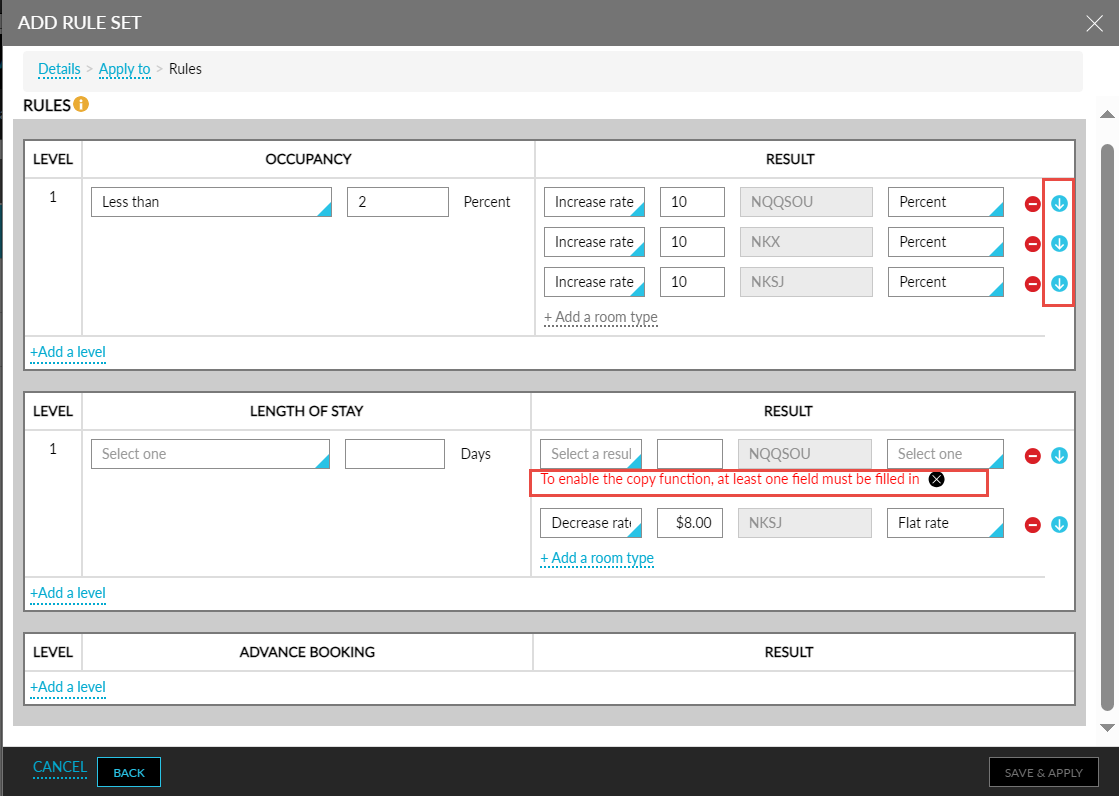
When users select the Yield By Room Type checkbox, the rate plans, packages, and room types in the Details, and Apply To tabs of the Add Rule pop-up screen and navigate to the Rules tab, users can copy the contents of the preferred row by clicking on the copy icon that is present at the end of each row under the Result column. When users click the icon for a row, the contents of all cells except the room type are copied to the rows below. If the user clicks the copy icon of the first row, the contents are copied to all the rows after the first.
When users click the Copy icon for a row that does not have any values configured, the following message is displayed: To enable the copy function, at least one value must be filled in. The Copy icon is greyed out when a negative percentage value is entered for a row.
To support this enhancement, a new copy icon has been added at the end of each row under the Result column in the Add Rule Set screen (Settings ➜ Rates ➜ Yielding ➜ New).